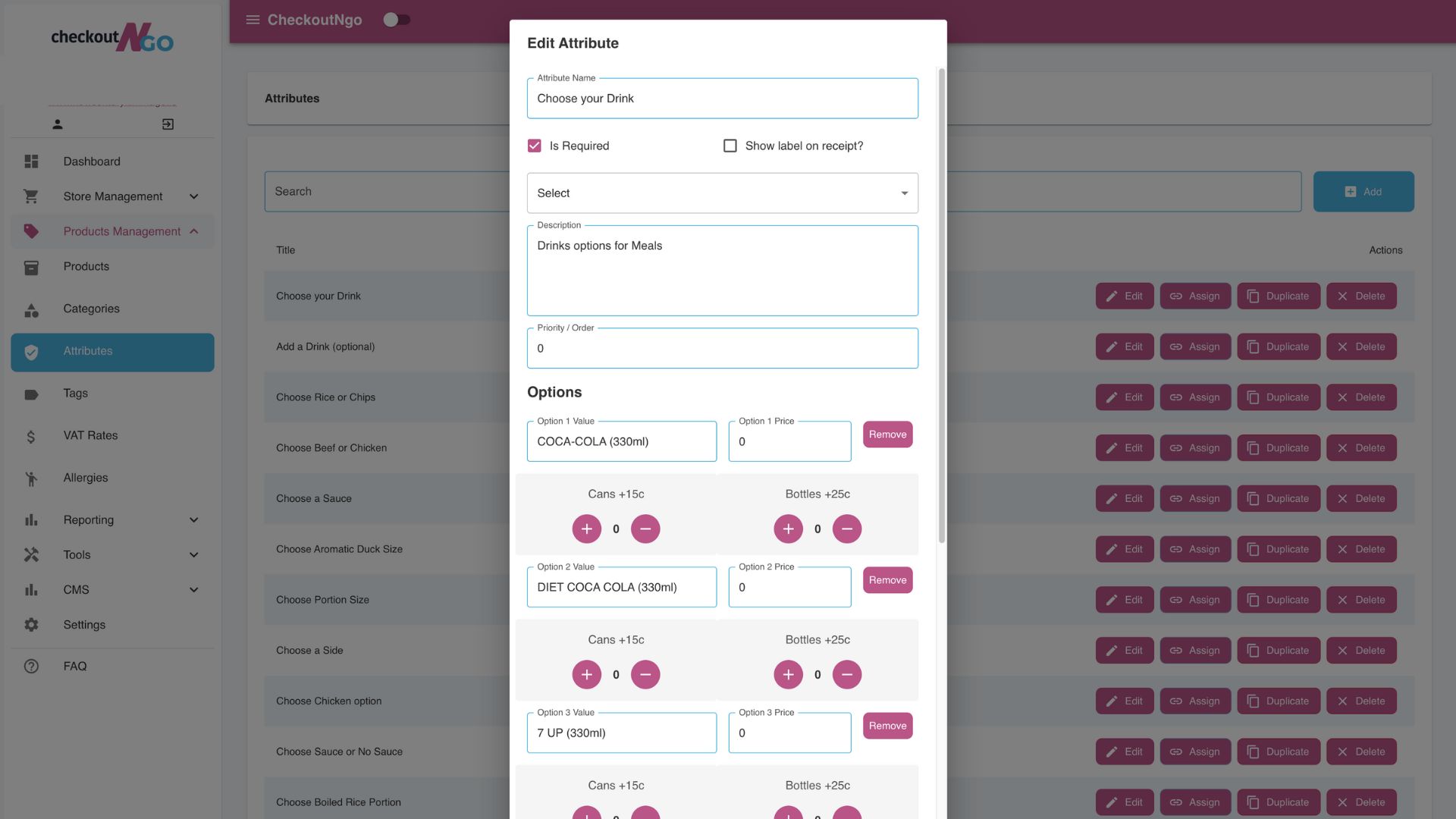
The Add/Edit Attribute popup in CheckoutNgo allows for the creation of flexible and customisable attributes for your products. Attributes can be simple or complex, based on your requirements. For instance, you can use attributes to let customers Choose Drink with their meal or select extras like Add Cheese, each with different pricing or rules. The interface also supports additional configurations, such as bottle/can return schemes.
Attribute Name
At the top of the popup, enter the Attribute Name, such as “Choose Drink” or “Extras.” This name will appear to customers, so ensure it’s clear and descriptive.
Required and Receipt Options
- Is Required: Check this box if customers must make a selection before they can complete their order. For example, a required attribute could be “Choose Drink” for a meal deal.
- Show Label on Receipt: Enabling this ensures that the attribute label will appear on the receipt, making it easier for your kitchen staff or delivery team to prepare the order accurately. Sometimes the attribute is not necessary and can take up too much space on the receipt, if that the case simply disable it from showing with this feature.
Input Type
The Input Type dropdown provides three options for how customers interact with the attribute:
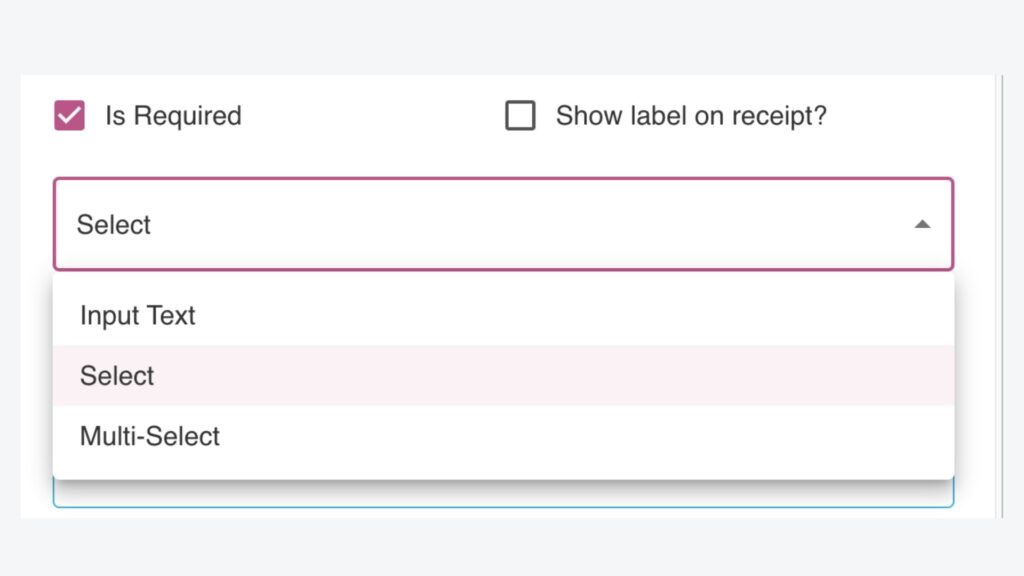
- Input Text: Allows customers to type their own input. This is useful for custom requests like “Special Instructions” or “Allergy Information.”
- Select: Enables customers to pick one option from a dropdown or radio button list, such as “Coke” or “Sprite” for the Choose Drink attribute.
- Multi-Select: Allows customers to choose multiple options. This is ideal for attributes like “Choose Toppings,” where customers might select several items like mushrooms, onions, and jalapeños.
Choose the type that best suits the level of customisation required for the attribute.
Options Configuration
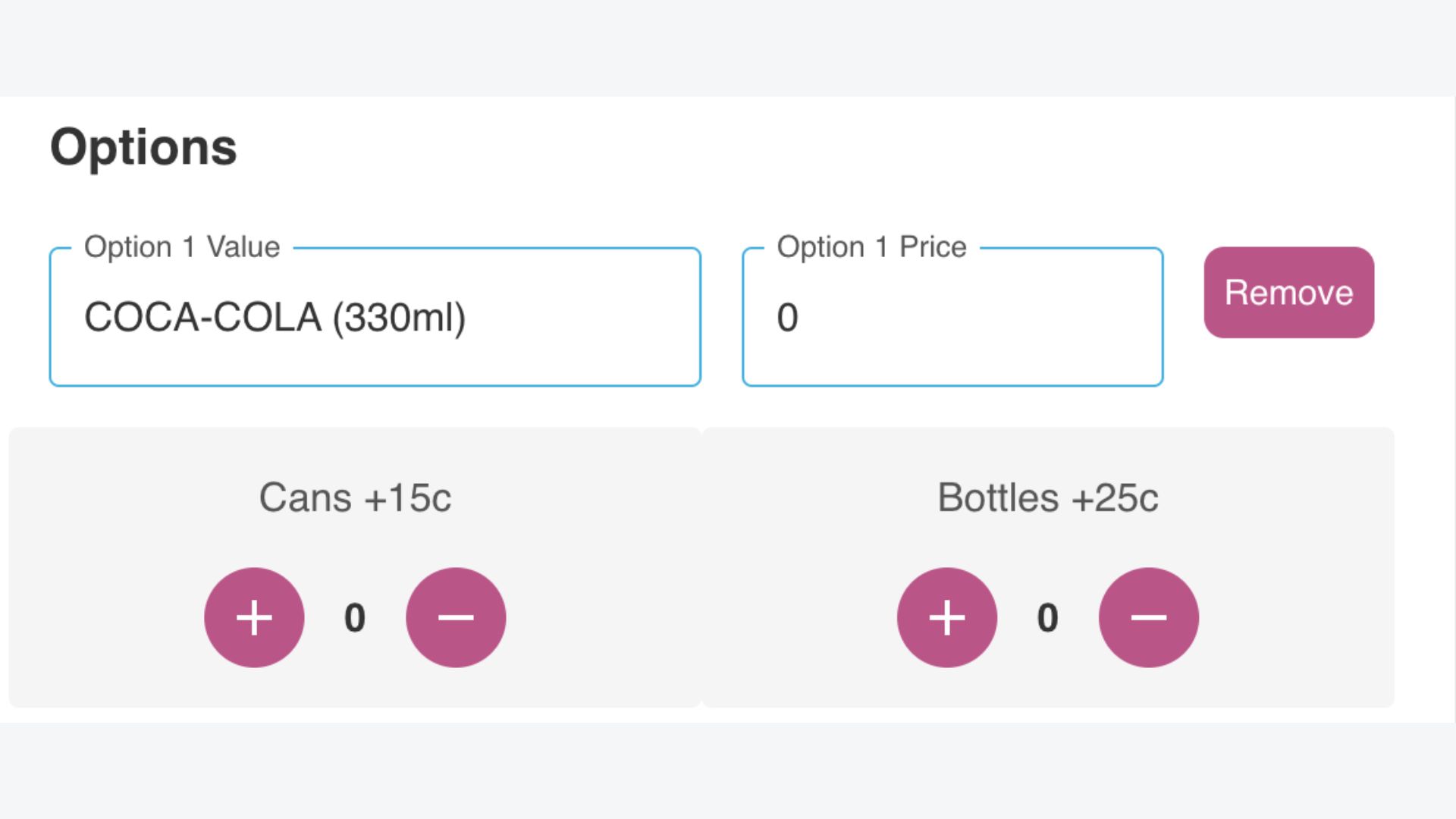
The Options section lets you define choices and configure pricing:
- Option Value: Enter the specific choice (e.g., “Cans,” “500ml Bottles”).
- Option Price: Set any additional cost for the option. For example, a 500ml bottle might add €0.50 to the total, while a can might have no extra charge
- Adjust Quantities: Add or reduce the quantity associated with this option using the +/- buttons. For example, for a “Choose Drink” attribute, you might include 1 Can or 1 Bottle, each tied to a specific return scheme.
Bottle/Can Return Scheme
This feature, visible in the Cans +15c / Bottles +25c section, allows you to assign return values to specific attribute options. For instance:
- Cans: Specify a return scheme of +15c for each can selected.
- Bottles: Specify a return scheme of +25c for each bottle chosen.
This is particularly useful for countries or regions where return deposits are mandatory for certain containers. Customers will see these additional costs reflected in their total, ensuring transparency.
Example:
- If the customer selects a “Coke Can,” it might have a return deposit of €0.15.
- If they upgrade to a 500ml Coke Bottle, the return deposit would increase to €0.25.
These values can be adjusted per option to match the local regulations.
Saving the Attribute
After defining the attribute details:
- Click Save to add the attribute to your system.
- Assign the attribute to specific products, such as linking “Choose Drink” to meal combos.
Making Attributes Work for You
Whether you’re creating a simple attribute like “Add Extra Cheese” or a detailed one like “Choose Drink” with return schemes, this popup interface provides all the tools you need. Use it to:
- Offer a tailored and transparent ordering experience.
- Ensure compliance with bottle/can return regulations.
- Upsell customers with additional options and charges.
By understanding the flexibility of the Input Type and Return Scheme features, you can create attributes that fit your business model while giving customers the options they value.