The Attributes Section in CheckoutNgo allows you to create and manage customisation options for your products.
https://www.dashboard.checkoutngo.com/menu/attributes
Attributes are particularly useful for products like a Kebab, where customers might want to select specific types or extras, such as Extra Cheese or Add Bacon, each with optional additional pricing. This flexibility enhances the customer’s ordering experience and allows you to upsell add-ons.
A single attribute can be assigned to many products – the beauty is when you need to update those product attributes, you only need to make the change to the master/global attribute. All changes are reflected onto the products at once.
Exploring the Attributes List Interface
The Attributes List Table displays all the attributes you’ve created for your store. Here’s an overview of what you can do
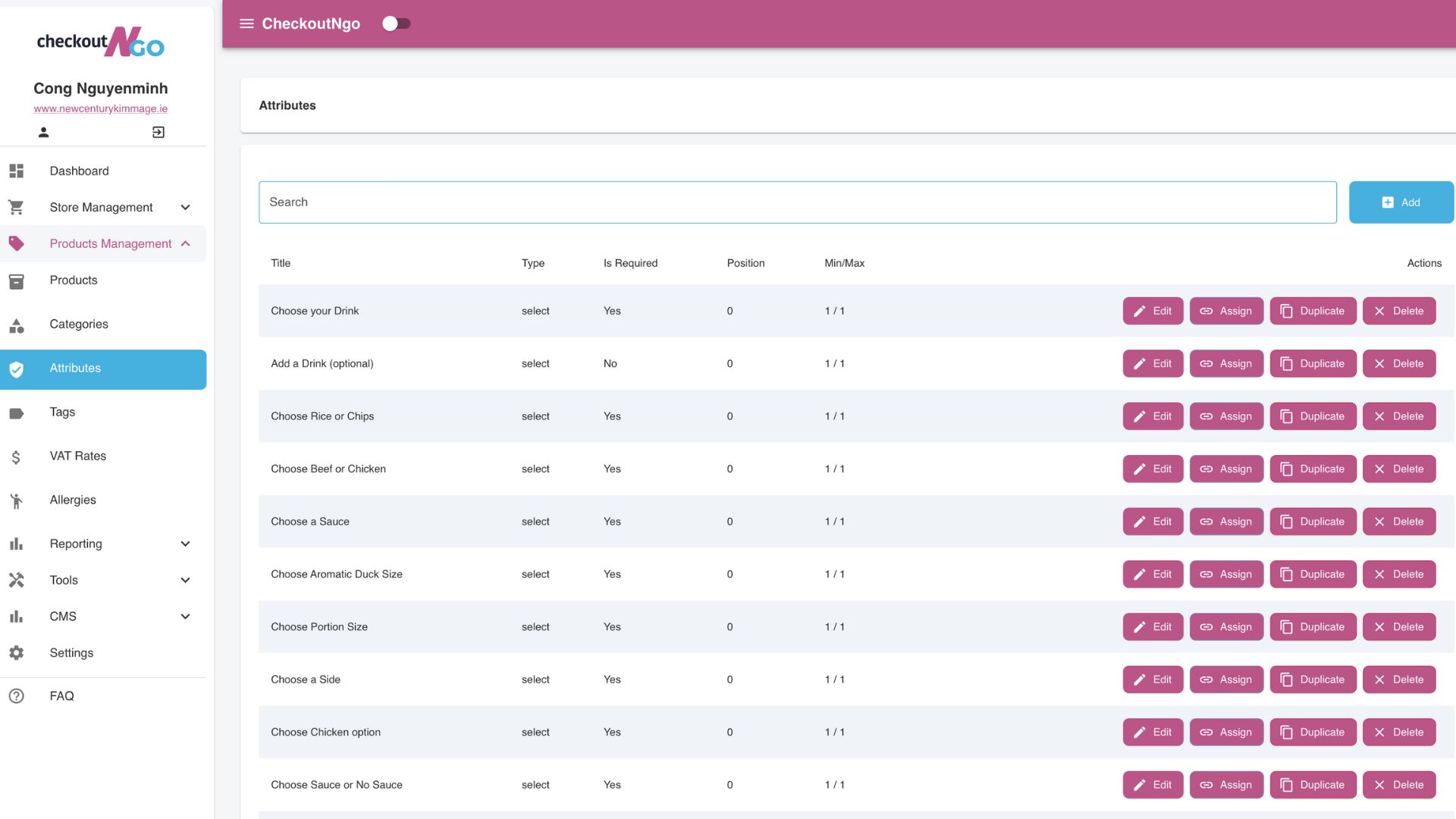
View Attributes:
- The Title column shows the name of the attribute, such as “Add Extra Cheese” or “Add Bacon.”
- The Type column specifies how the attribute is displayed to customers, such as a text field for comments or a dropdown for selections.
- Is Required indicates whether the attribute is mandatory for the customer to select.
- Position determines the display order of the attribute, where lower numbers appear first.
- The Min/Max column defines the range of selections allowed for the attribute (e.g., 1/1 means the customer can only choose one option).
Actions for Each Attribute:

- Edit: Modify the details of the attribute, such as its name, type, or pricing.
- Assign: Link the attribute to specific products (e.g., assigning “Add Bacon” to all kebabs).
- Duplicate: Create a copy of an existing attribute for quicker setup of similar options.
- Delete: Remove an attribute that is no longer needed.
Search for Attributes:
- Use the Search Bar at the top of the interface to quickly locate an attribute by its title or details.
Add New Attributes:
- Click the blue Add button to create a new attribute. This opens a form where you can configure details like the attribute title, type, and pricing.
